Meet Alexa: Your Voice-Activated Digital Assistant
Imagine walking into your home and saying, “Alexa, turn on the lights,” and your house instantly obeys. No buttons, no remotes—just your voice. This is the magic of Amazon Alexa, the AI-powered assistant that’s changing how we interact with technology.
But what exactly is Alexa, and how does it work? Let’s break it down in simple terms.
What Is Alexa?
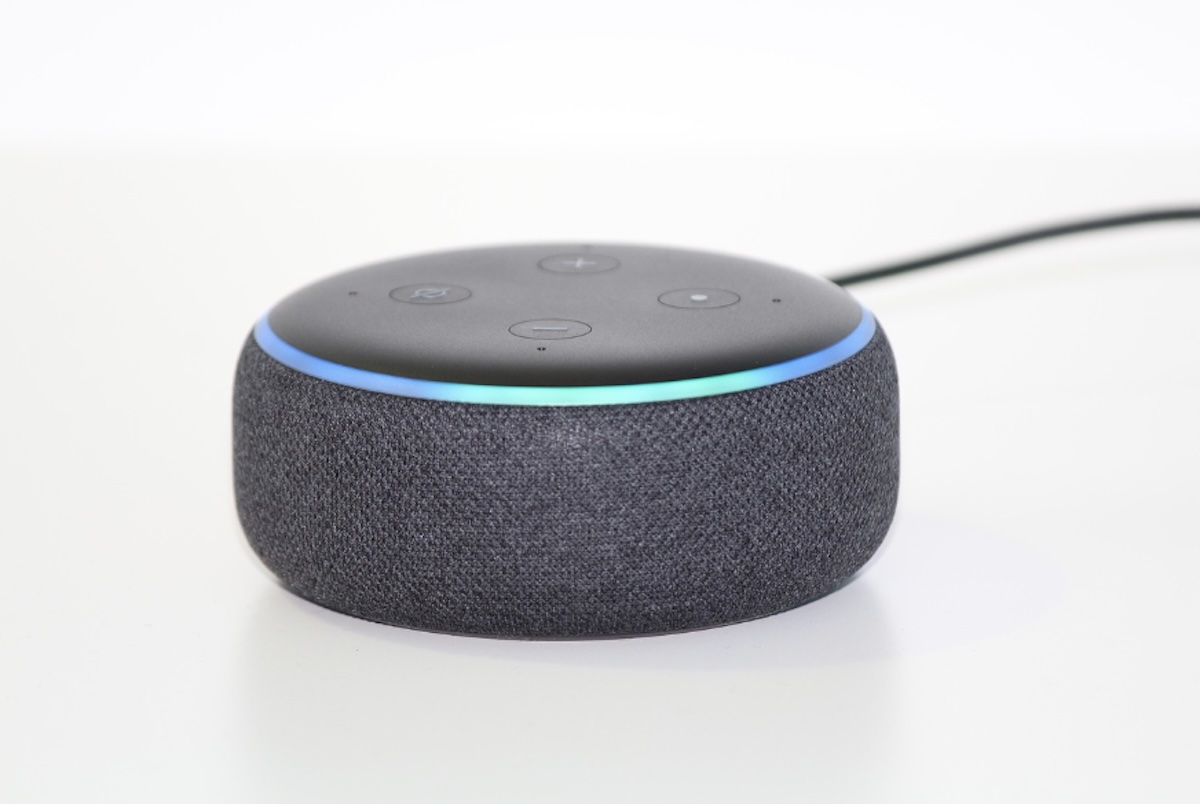
Alexa is Amazon’s cloud-based voice assistant that responds to voice commands to perform tasks like:
✅ Playing music
✅ Controlling smart home devices
✅ Answering questions
✅ Setting reminders & alarms
✅ Ordering products from Amazon
Fun Fact: Alexa’s name was inspired by the ancient Library of Alexandria—a symbol of knowledge.
How Does Alexa Work?
Alexa operates through a combination of:
1. Voice Recognition
- Uses far-field microphones to hear you from across the room
- Wakes up when you say “Alexa” (or another wake word)
2. Cloud Processing
- Your voice is sent to Amazon’s servers for interpretation
- Responds in less than 1.5 seconds
3. Smart Home Integration
- Works with 30,000+ devices (lights, thermostats, cameras)
- Uses Wi-Fi, Bluetooth, and Zigbee for connectivity
How to Set Up Alexa (Step-by-Step)
What You’ll Need:
- An Amazon account
- The Alexa app (iOS/Android)
- A stable Wi-Fi connection
Setup Steps:
- Plug in your Alexa device (Echo, Dot, etc.).
- Open the Alexa app → “Devices” → “+” → “Add Device.”
- Select your Echo model and follow on-screen instructions.
- Connect to Wi-Fi (see next section).
- Start talking to Alexa!
How to Connect Alexa to Wi-Fi
If your Wi-Fi changes or Alexa disconnects:
- Open the Alexa app → “Devices” → “Echo & Alexa.”
- Select your device → “Change Wi-Fi.”
- Choose your new network and enter the password.
- Wait for confirmation (“Connected”).
Pro Tip: Place Alexa at least 3 feet away from routers to avoid interference.
How to Reset Alexa
Soft Reset (Restart)
- Unplug your Echo for 30 seconds.
- Plug it back in.
Factory Reset (For Troubleshooting)
For Echo Buttons:
- Hold the Action button for 25 seconds until the light turns orange.
For Echo Show:
- Go to “Settings” → “Device Options” → “Reset to Factory Defaults.”
Alexa Privacy & Security Tips
🔒 Review voice recordings:
- “Alexa, delete everything I said today.”
- Or disable storage in “Alexa Privacy Settings.”
🚫 Disable drop-in calls if you don’t want unexpected intrusions.
Fun Alexa Commands to Try
🎵 “Alexa, sing happy birthday.”
🌦 “Alexa, will it rain tomorrow?”
📖 “Alexa, read me the news.”
😂 “Alexa, tell me a joke.”
Alexa vs. Google Assistant vs. Siri
| Feature | Alexa | Google Assistant | Siri |
|---|---|---|---|
| Smart Home Control | Best | Good | Limited |
| Voice Shopping | Excellent (Amazon) | Fair | None |
| Jokes & Personality | Very Fun | Basic | Sarcastic |
Should You Get Alexa?
Yes if you want:
✔ Hands-free home control
✔ Great smart home compatibility
✔ Fun, interactive features
No if:
✖ You prioritize privacy (always-listening mic)
✖ You use Apple devices (Siri may be better)
#MeetAlexa #SmartHomeMadeEasy 🏠🔊