
Managing your starbuck gift card balance has become easier than ever thanks to the Starbucks mobile app. Whether you received a new gift card or want to reload funds for your next coffee run, the app allows you to add, transfer, and manage your balance in just a few taps. In this guide, we’ll walk you through the complete process step by step, ensuring you never miss out on your favorite Starbucks beverages.
Why Managing Your Starbuck Gift Card Balance Is Important
Keeping track of your starbuck gift card balance helps you:
- Avoid payment issues at checkout
- Reload funds in advance
- Combine multiple gift cards into one balance
- Enjoy faster and smoother in-store or mobile payments
With the Starbucks app, all of this can be done digitally—no physical card required.
How to Add a Gift Card to the Starbucks App
Adding a gift card is the first step to accessing and managing your starbuck gift card balance. Follow these simple instructions:
Step 1: Open the Starbucks App
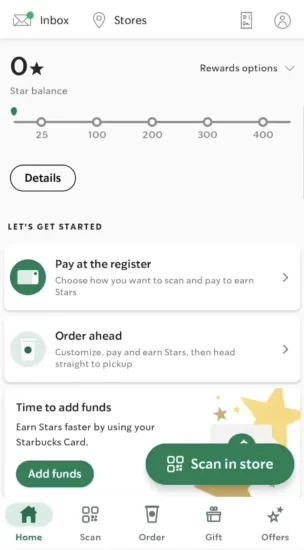
Start by opening the Starbucks app on your smartphone. Make sure you are logged into your Starbucks account to access gift card features.
Step 2: Tap on the Gift Icon
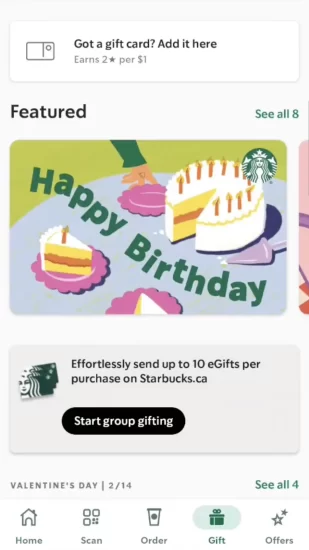
At the bottom of the screen, locate and tap the gift icon. This section is dedicated to managing gift cards and balances.
Step 3: Select “Got a Gift Card?”
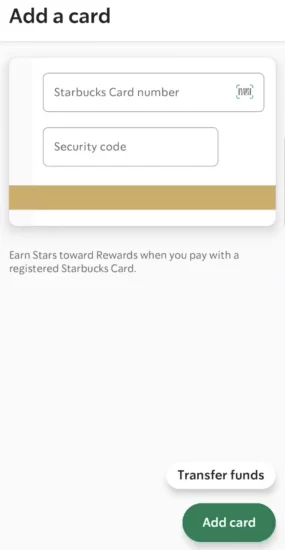
Once you’re in the gift section, tap on the option that says “Got a gift card?”. This allows you to add a new card to your account.
Step 4: Enter Gift Card Details
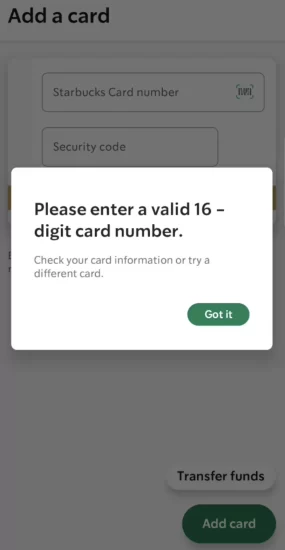
You will now be prompted to enter:
- The 16-digit Starbucks card number
- The security code found on the back of the card
Double-check the details to ensure accuracy before moving forward.
How to Transfer Funds and Add Balance
After successfully adding your card, you can easily manage and increase your starbuck gift card balance.
Transfer Funds Between Cards
If you already have an existing Starbucks card in your app, you can transfer funds from one card to another. Simply select the card you want to move funds from and choose the destination card.
Reload Your Gift Card Balance
You can add more money to your gift card using:
- A debit card
- An ATM card
- Any payment method already saved in your Starbucks account
Once the payment method is selected, enter the amount and confirm the transaction. Your starbuck gift card balance will update instantly if the card details are valid.
Benefits of Using the Starbucks App for Gift Cards
Using the app to manage your starbuck gift card balance comes with several advantages:
- Instant balance updates
- Secure digital storage of gift cards
- Easy fund transfers
- Quick reloading options
- No need to carry physical cards
This makes the app especially useful for frequent Starbucks customers.
Common Issues and Tips
Here are a few tips to avoid problems while managing your starbuck gift card balance:
- Ensure the card number and security code are entered correctly
- Use a stable internet connection while transferring funds
- Keep your app updated to the latest version
- Confirm that your payment method is valid before reloading
If a card number is invalid, the app will notify you immediately.
Manage Your Starbuck Gift Card
Managing your starbuck gift card balance through the Starbucks app is a simple and efficient way to stay ready for your next coffee break. From adding new gift cards to transferring funds and reloading balances, the entire process takes just a few minutes. Once your card is added, you can enjoy seamless payments and better control over your Starbucks spending.
Stay connected and keep your gift card balance updated so you never miss out on your favorite Starbucks drinks.