Why Use Split Screen on Mac?
Juggling between multiple windows can slow you down. Whether you’re:
- 📊 Comparing documents side by side
- 🎥 Watching a video while taking notes
- 💻 Coding with reference material open
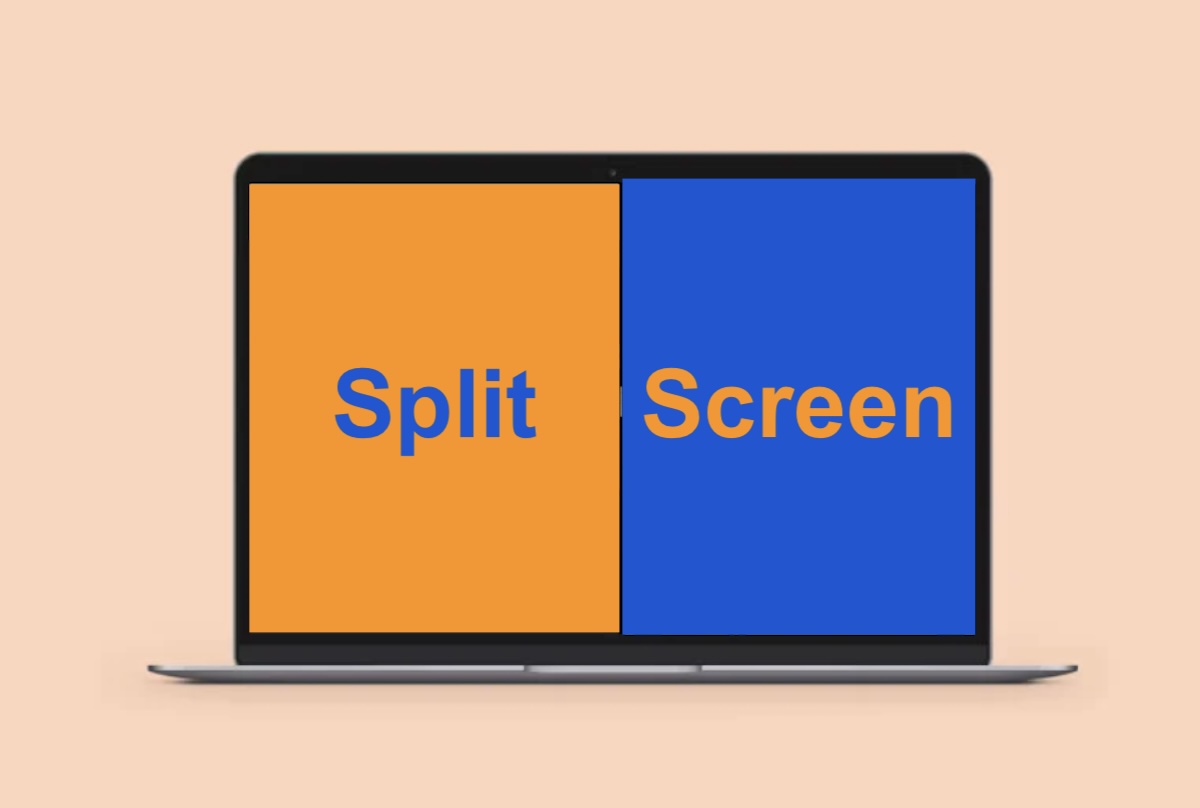
Mac’s Split View (and other tricks) let you view two apps full-screen, side by side—no more frantic window resizing!
Method 1: Use Built-In Split View (Easiest Way)
Step 1: Enter Split View
- Hover over the green full-screen button (top-left of any window).
- Select “Tile Window to Left/Right of Screen” (or drag the window manually).
- Click a second app on the other side to complete the split.
Step 2: Adjust the Divider
- Drag the middle divider to resize windows.
- Swap sides by dragging a window to the opposite edge.
Step 3: Exit Split View
- Press Esc (or the green button again) to return to normal view.
✅ Works on: macOS Ventura & later (older Macs use Mission Control).
Method 2: Split Screen with Mission Control (Older Macs)
If your Mac doesn’t show the green button menu, try this:
- Open Mission Control (press Control + ↑ or swipe up with 3 fingers).
- Drag a window to the top (it becomes a new desktop).
- Open a second app, then drag it next to the first in Mission Control.
Method 3: Keyboard Shortcuts for Faster Splitting
💡 Pro Tip: Speed up splitting with these shortcuts:
- Enter Split View:
Control + Command + F(full-screen), then drag a second app. - Switch sides:
Control + Left/Right Arrow. - Exit full-screen:
EscorControl + Command + Fagain.
Method 4: Third-Party Apps for Advanced Splitting
If you need more than 2 splits or custom layouts, try:
- Rectangle (Free) – Resize windows into grids.
- Magnet ($7.99) – Drag-and-drop snapping.
- Divvy ($14) – Custom split templates.
Troubleshooting: Split View Not Working?
🔹 Check macOS version (Split View requires Yosemite or later).
🔹 Enable “Displays have separate Spaces” in System Settings > Mission Control.
🔹 Restart your Mac if windows won’t snap.
Master Multitasking on Mac
Now you can:
✔️ Snap two apps side by side in seconds.
✔️ Use keyboard shortcuts for efficiency.
✔️ Try third-party tools for grids & more.
Say goodbye to cluttered tabs—split your screen like a pro!
Found this helpful? Share it with a fellow Mac user! 🚀