If you’re playing Rainbow Six Siege on your PlayStation 5 and can’t hear or talk to your teammates, you’re not alone. Many players experience a frustrating issue where everyone appears with muted mic icons, and all voice communication goes silent. Thankfully, there are several effective fixes that can restore your voice chat functionality, and we’ve compiled them all in this step-by-step guide.
Whether it’s your Ubisoft settings, PS5 audio configurations, or a network issue, here’s how to get voice chat working again in Rainbow Six Siege.
🔧 Step-by-Step Fix for Rainbow Six Siege Voice Chat Not Working
1. ✅ Check Your Ubisoft Account Privacy Settings
The first step is to ensure your account isn’t blocking voice communication:
- Visit: https://account.ubisoft.com
- Log in with your Ubisoft credentials
- Navigate to Privacy Settings
- Under Social Preferences, set Text & Voice Chat to Everyone
This setting must allow public voice and text communication, or you won’t hear anyone, even if your console is properly configured.
2. 🎮 Adjust In-Game Voice Chat Settings in Siege
Make sure the in-game settings are not limiting your mic:
- Launch Rainbow Six Siege
- Go to Settings > Audio
- Set Voice Chat Record Mode to Open Mic or Push-to-Talk, depending on preference
- Set Voice Chat Volume to 100%
- Set Record Threshold to around 10–15
This ensures your mic activates easily and others can hear you clearly.
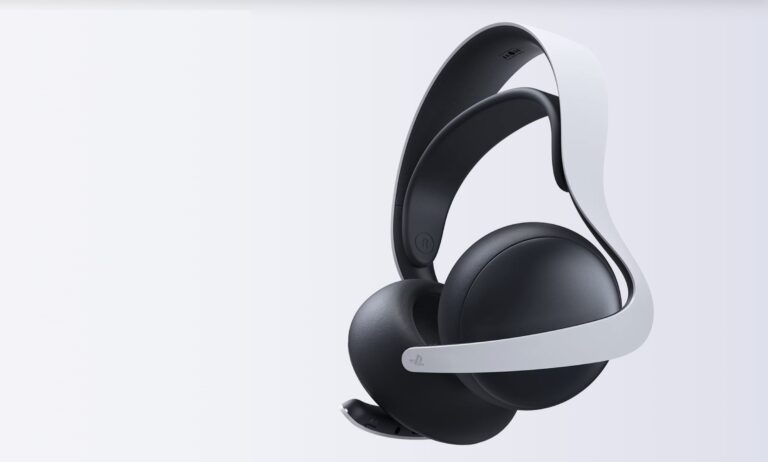
3. 🎧 Configure PS5 Microphone and Audio Output Settings
Your PS5 must recognize and use the correct microphone and output devices:
- Go to Settings > Sound > Microphone
- Ensure your headset mic is selected
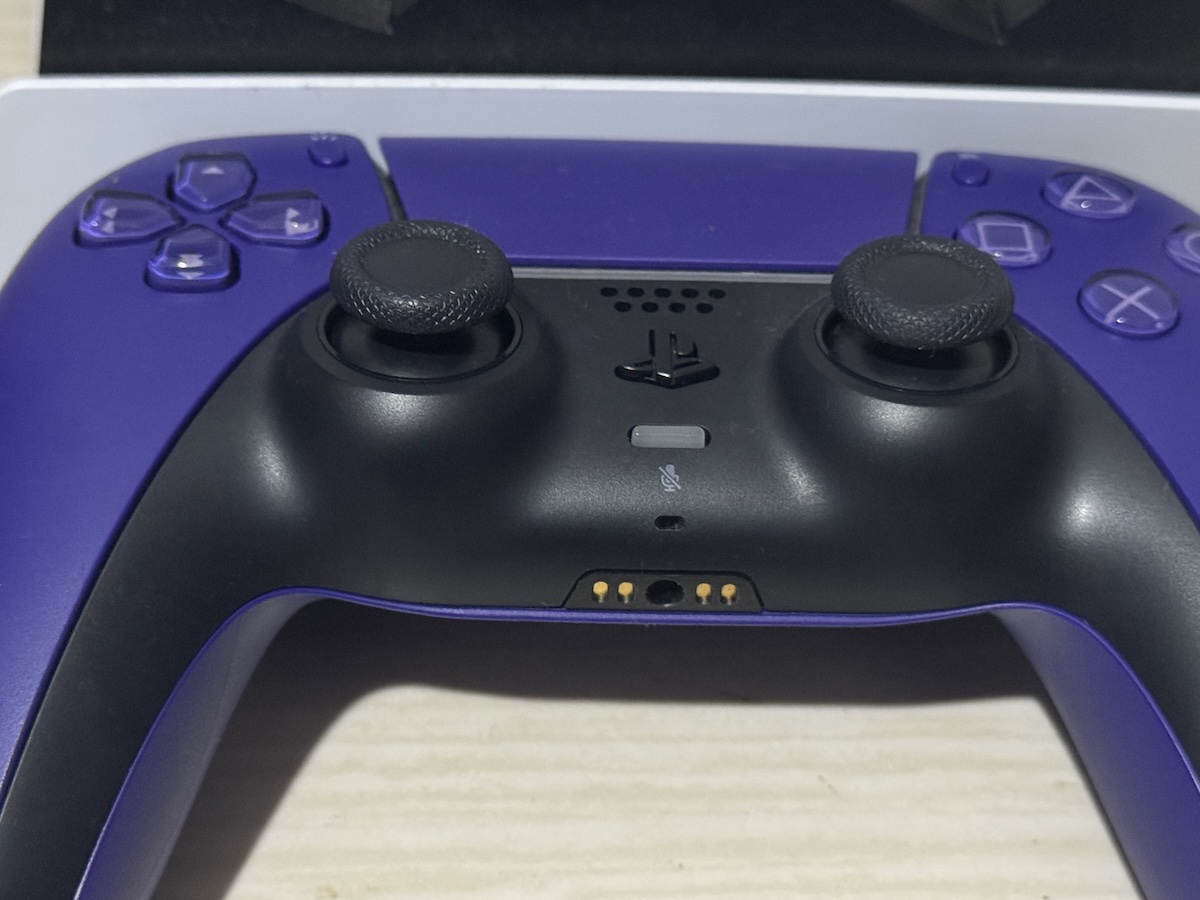
- Confirm it’s not muted and adjust mic level
- Go to Settings > Sound > Audio Output
- Set Output Device to your headset, not your TV or capture card
- Turn ON Switch Output Device Automatically
A mismatched output device is a common cause of voice chat issues.
4. 🔒 PS5 Privacy and Communication Settings
PlayStation privacy settings can block in-game communication by default:
- Go to Settings > Users and Accounts > Privacy
- Select View and Customize Your Privacy Settings
- Under Communication and Multiplayer:
- Set “You can communicate with voice and text” to Everyone
- Set “Who can communicate with you in games” to Everyone
Without these permissions, Siege cannot allow voice chat even if everything else is set up correctly.
5. 🕵️♂️ Check If Someone Changed Console Settings
Sometimes the issue is a local setting change:
- Navigate to Settings > Captures and Broadcasts > Audio
- Make sure “Include Voice Chat Audio” is ON
If someone else has been using your console, especially for streaming or recording, they may have unintentionally changed audio sharing options.
6. 🌐 NAT Type & Network Troubleshooting (Optional but Helpful)
Voice chat can fail if your network’s NAT type is too strict:
- Go to Settings > Network > View Connection Status
- Check your NAT Type:
- Type 1 or 2 = Good
- Type 3 = Might block voice chat
If you’re on NAT Type 3, try:
- Restarting your router
- Enabling UPnP in your router settings
- Port forwarding Ubisoft’s recommended ports
7. 🔄 Reinstall Rainbow Six Siege (Final Solution)
If none of the above works, reinstalling the game may fix corrupted files:
- Backup your saved data (if necessary)
- On the PS5 Home Screen, highlight Siege, press Options, then select Delete
- Reinstall from your Game Library or PlayStation Store
This reset cleared the issue for many users, especially after updates.
8. 💤 Use PS5 Rest Mode for Faster Downloads
Want to reinstall Siege faster?
- Go to Settings > System > Power Saving > Features Available in Rest Mode
- Turn ON “Stay Connected to the Internet”
- Put PS5 in Rest Mode during the download
This speeds up game reinstallation and gets you back into action quicker.
✅ Final Result: Voice Chat Working Again in Rainbow Six Siege
After following these steps, most players report full voice chat functionality restored in Rainbow Six Siege on PS5. Mic icons return to normal, and teammates can once again hear and communicate in real time, critical for competitive gameplay.
If you’ve been dealing with silence in Siege, don’t give up, one of these fixes will likely bring your voice back to the battlefield.