Facebook has become one of the most widely used platforms to connect with friends, family, and colleagues. As part of its customization options, Facebook allows you to change your name if you need to update it for any reason. Whether you’ve gotten married, want to use a nickname, or simply prefer a different version of your name, Facebook makes it relatively simple to make these changes.
In this post, we’ll guide you through the process of how to change your name on Facebook, step-by-step. Plus, we’ll cover important details like how often you can change your name and what to keep in mind before doing so.
Why Change Your Name on Facebook?
There are a variety of reasons why you might want to change your name on Facebook:
- Marriage or Divorce: After getting married or divorced, you may wish to update your last name.
- Nickname: You might prefer to go by a nickname or short version of your first or last name.
- Privacy: Sometimes, people change their name to protect their identity or privacy online.
No matter the reason, Facebook allows you to update your profile name in just a few easy steps.
How to Change Your Name on Facebook: Step-by-Step Guide
Changing your name on Facebook is an easy process, but there are a few rules and guidelines to follow. Here’s how to do it:
1. Open the Facebook App or Website
First, make sure you’re logged into Facebook. You can do this from either the mobile app or a desktop browser. The steps are similar on both, but we’ll guide you through each option.
2. Navigate to the Settings Menu
- On Mobile (App):
- Open the Facebook app and go to the menu.
- For iOS devices, tap the three horizontal lines in the bottom right corner. On Android, tap the three horizontal lines in the top right corner.
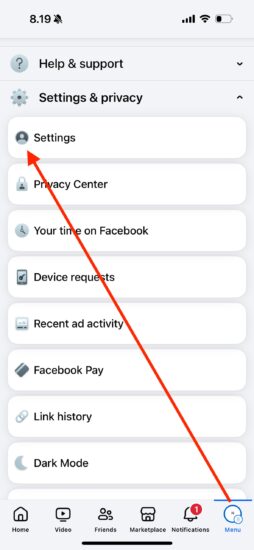
- Scroll down and select Settings & Privacy to expand the options.
- Then, tap on Settings.
- On Desktop (Web Version):
- On the Facebook homepage, click the downward arrow in the top right corner.
- From the dropdown menu, select Settings & Privacy, then click Settings.
3. Go to the Account Center
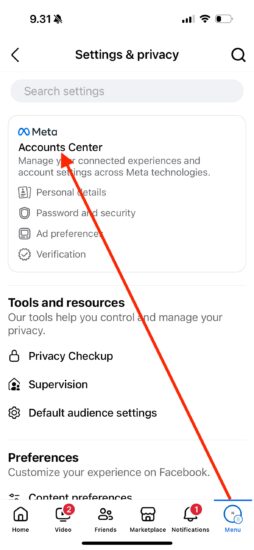
- Mobile: Once you’re in Settings, scroll down until you find Account Center and tap on it.
- Desktop: In the Settings sidebar, click on Account Settings.
4. Choose Your Profile
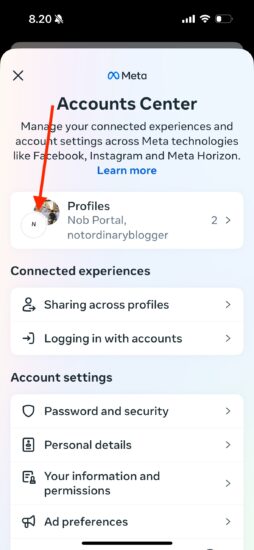
If you have more than one account (for example, you manage business and personal accounts), make sure to select the profile for which you want to change the name. Then, you’ll be directed to the profile settings.
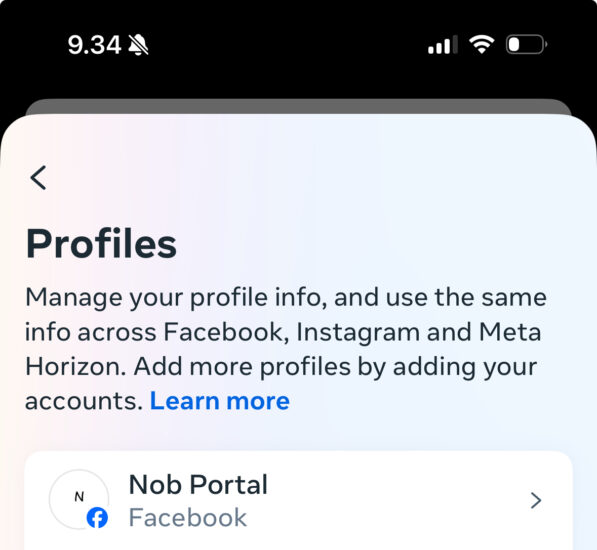
5. Change Your Name
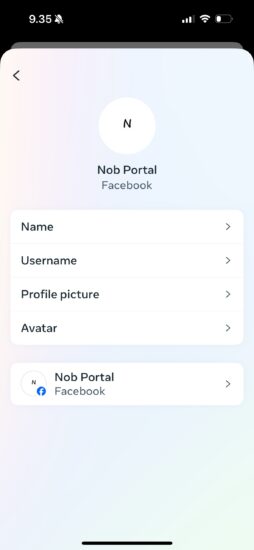
- Now that you’re in the profile settings, you’ll see an option labeled Name.
- Click on the Name field, and you’ll be able to edit your first, middle, and last name as well as your display name.
- Make sure to enter the name exactly how you want it to appear, as Facebook will show it to all your friends and followers.
6. Save Changes
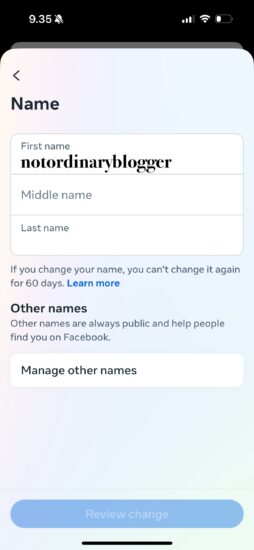
Once you’ve typed your new name, click Review Change (on mobile) or Save Changes (on desktop). Facebook may ask you to confirm your identity by entering your password.
7. Confirm Your New Name
After submitting the changes, your new name will be displayed on your Facebook profile. It may take a few moments to reflect across the platform.
Important Things to Know Before Changing Your Name on Facebook
- Name Guidelines: Facebook has certain rules regarding names, which include:
- Your name must follow Facebook’s Community Standards and must reflect the name you’re known by in everyday life.
- Facebook does not allow symbols, numbers, unusual capitalizations, or offensive words in your name.
- Frequency of Name Changes: You can only change your name once every 60 days. After that, you’ll need to wait before making any additional changes.
- Nicknames and Alternative Names: Facebook allows you to add other names (e.g., nicknames, maiden names, or alternate spellings). These won’t replace your primary name but will show up on your profile under “Other Names.”
- What Happens After Changing Your Name: Once your name is updated, it will be reflected across your Facebook account, including your posts, comments, and messages. However, keep in mind that your friends will be notified of the name change.
- Impact on Facebook Pages and Groups: If you manage a Facebook Page or Group, your name change will not affect these accounts directly, but the name change could affect your interactions with group members or followers.
Why Can’t I Change My Name on Facebook?
If you’re having trouble changing your name, it might be due to a few common reasons:
- Recent Changes: You may have already changed your name within the past 60 days. As mentioned, Facebook only allows one name change every two months.
- Violation of Facebook’s Rules: If your name does not adhere to Facebook’s guidelines, you might be restricted from making changes.
- Account Issues: Occasionally, if Facebook detects unusual activity on your account, they may temporarily restrict certain features, including the ability to change your name.
Final Thoughts
Changing your name on Facebook is a quick and easy process that can be done from both the app and website. Whether you’re updating your name for privacy reasons or simply personal preference, knowing how to change your name on Facebook allows you to maintain control over your digital identity.
Just remember to follow Facebook’s name guidelines and be aware of the 60-day waiting period between changes. If you have any doubts or run into issues, you can always refer to Facebook’s help center for additional support.
Now that you know how to change your name on Facebook, feel free to update your profile to reflect your true identity!