The Stress-Free Way to Move to a New iPhone
You just got a shiny new iPhone—but now comes the dreaded task of moving all your stuff from the old one.
- Your 10,000+ photos
- Years of text messages
- App logins and settings
- Even your Home Screen layout
The good news? Apple makes this surprisingly easy. Here are the best methods to transfer everything in minutes—without losing data.
Method 1: Quick Start (Fastest & Easiest)
Best for: Transferring everything wirelessly (iOS 12.4 or later).
Step 1: Prepare Both iPhones
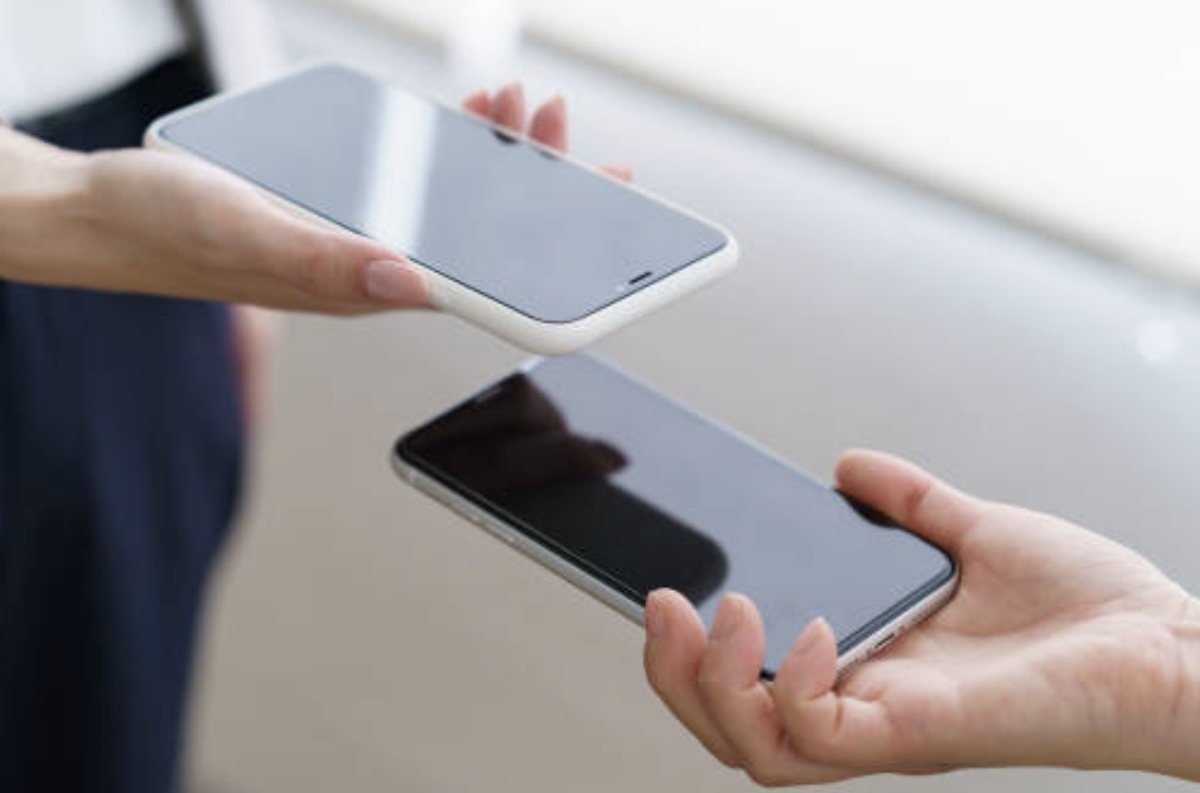
- Turn on both iPhones and place them near each other.
- On your old iPhone, a pop-up says “Set Up New iPhone”—tap Continue.
- Scan the swirling animation on the new iPhone with your old one.
Step 2: Set Up the Transfer
- Enter your old iPhone’s passcode on the new one.
- Choose “Transfer from iPhone” and connect to Wi-Fi.
- Keep the phones close and plugged in until the transfer finishes (time depends on data size).
✅ What transfers:
- Photos, contacts, messages, apps, settings, and even Home Screen layout.
Method 2: iCloud Backup (Good for Smaller Transfers)
Best for: Users with a strong Wi-Fi connection and enough iCloud storage.
Step 1: Back Up Your Old iPhone
- Go to Settings → [Your Name] → iCloud → iCloud Backup.
- Tap “Back Up Now” (ensure Wi-Fi is connected).
Step 2: Restore to New iPhone
- Turn on your new iPhone and follow setup prompts.
- At the Apps & Data screen, choose “Restore from iCloud Backup”.
- Sign in to iCloud and pick the latest backup.
⚠️ Note: This method doesn’t transfer Apple Watch data or some Health info.
Method 3: iTunes/Finder Backup (Best for Large Data, No Wi-Fi Needed)
Best for: Users with lots of data or slow internet.
Step 1: Back Up to Computer
- Connect your old iPhone to a Mac/PC.
- Mac (macOS Catalina+): Open Finder.
- PC or older Mac: Open iTunes.
- Click “Back Up Now” (encrypt the backup to save passwords).
Step 2: Restore to New iPhone
- Connect your new iPhone to the same computer.
- Select “Restore Backup” and choose the latest one.
Method 4: Direct Cable Transfer (Fastest for Huge Data)
Best for: Transferring 100GB+ of data quickly.
- Connect both iPhones to power.
- Plug a Lightning-to-USB 3 Camera Adapter into the new iPhone.
- Attach a Lightning cable from the adapter to the old iPhone.
- Follow the on-screen prompts to transfer data directly.
What Doesn’t Transfer Automatically?
❌ Apple Watch data (unpair and re-pair).
❌ Face ID/Touch ID settings (set up manually).
❌ Some app logins (like banking apps).
Pro Tips for a Smooth Transfer
🔹 Charge both iPhones to at least 50%.
🔹 Delete unused apps before transferring to save time.
🔹 Update iOS on both devices to avoid errors.
Which Method Should You Use?
| Method | Best For | Speed |
|---|---|---|
| Quick Start | Most users (wireless) | ⚡⚡⚡⚡ |
| iCloud Backup | Small backups (under 50GB) | ⚡⚡ |
| iTunes/Finder | Large backups (no Wi-Fi) | ⚡⚡⚡ |
| Direct Cable | 100GB+ data (fastest) | ⚡⚡⚡⚡⚡ |
Enjoy Your New iPhone—With All Your Old Data!
Now you can seamlessly switch without losing photos, messages, or settings.
Upgrading soon? Bookmark this guide for a stress-free transfer!
Found this helpful? Share it with a friend getting a new iPhone! 📱➡️📱