Solid State Drives are no longer just a tech upgrade they’re becoming the default storage standard across computers, gaming consoles, and portable devices. From faster boot times to smoother gaming, SSDs are reshaping how users store and access data.
As demand grows for 1TB SSD, 2TB SSD, and even 4TB SSD options, many consumers are asking the same questions: What is SSD? How does it compare to HDD? And how do you upgrade or maintain one properly?
Here’s what you need to know.
What Is SSD and Why It’s Faster Than Traditional Storage
What is SSD?
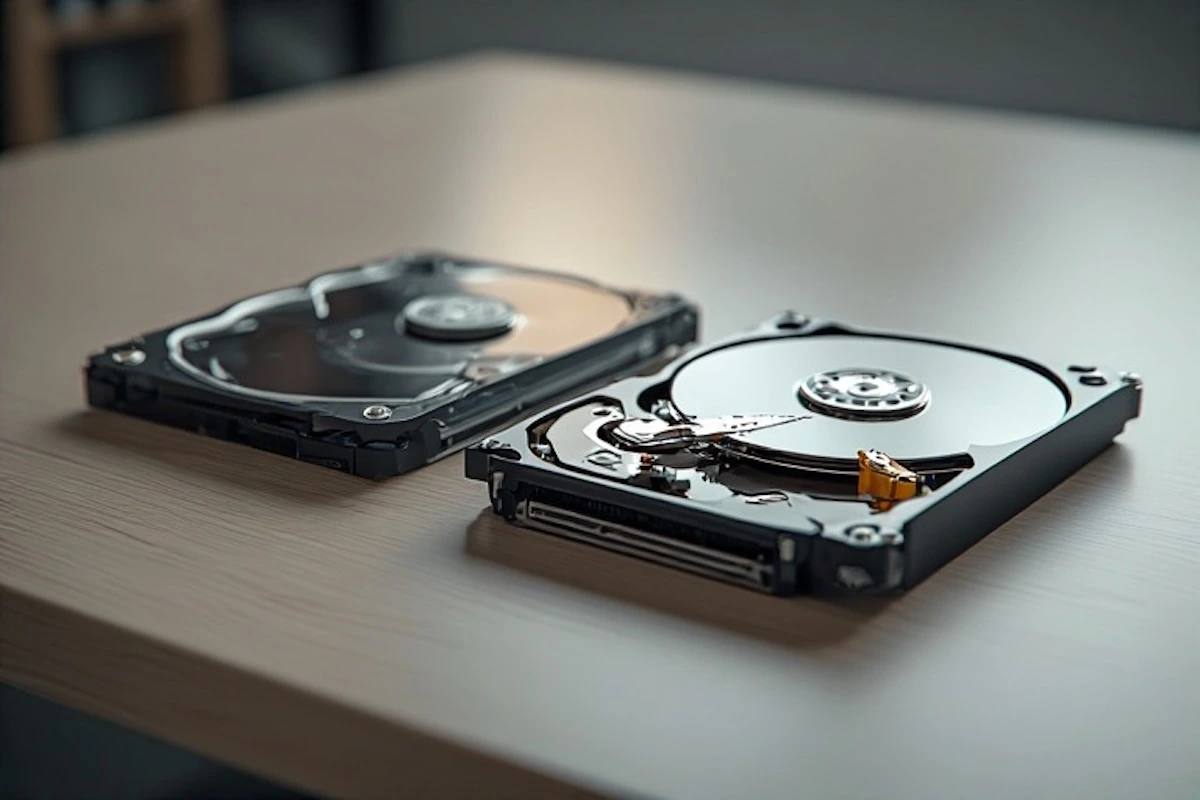
An SSD (Solid State Drive) is a storage device that uses flash memory instead of mechanical parts. Unlike hard disk drives, SSDs have no spinning platters or moving heads, which allows them to access data almost instantly.
This technology dramatically improves:
- System startup times
- App and game loading speeds
- File transfers
- Overall system responsiveness
That’s why SSD drives are now standard in modern laptops, desktops, and next-generation consoles.
What Is an SSD Drive Used For Today?
An SSD drive is commonly used for:
- Operating systems (Windows and macOS)
- Gaming libraries (PC and PS5)
- Creative work like video editing
- Portable external storage
- Retro gaming and emulation setups
As storage needs grow, higher-capacity SSDs are becoming more common.
SSD Storage Sizes Explained: 1TB, 2TB, 4TB SSD and more
1TB SSD
A 1TB SSD is ideal for everyday users who want fast performance without worrying about space for apps, files, and several games.
2TB SSD
A 2TB SSD offers a strong balance for gamers and creators, providing enough room for large game installs, 4K video files, and PS5 storage expansion.
4TB SSD
A 4TB SSD is designed for power users, heavy multitaskers, and long-term storage needs, especially as modern games and media files continue to grow in size.
SSD vs HDD: Why SSDs Are Replacing Hard Drives
When comparing SSD vs HDD, the differences are clear:
- SSDs load data significantly faster
- HDDs rely on mechanical movement
- SSDs are more durable and energy-efficient
- HDDs are slower but cheaper per gigabyte
For performance-focused users, SSDs are now the preferred choice.
How to Check SSD Health Before Problems Appear
Knowing how to check SSD health helps extend its lifespan.
- On Windows, SSD health can be checked using SMART monitoring tools
- On macOS, Disk Utility shows drive status and diagnostics
- Key indicators include remaining lifespan, read/write cycles, and error counts
Routine checks help avoid unexpected data loss.
How to Format SSD for PC, Laptops, and PS5
How to Format SSD for PC or Laptop
Formatting an SSD on Windows typically involves Disk Management, selecting the correct file system (usually NTFS), and assigning a drive letter.
How to Format SSD for PS5
The PS5 automatically detects compatible SSDs and walks users through formatting during setup, ensuring optimal performance for next-generation games.
How to Upgrade PS5 SSD for More Storage
As game file sizes grow, many players are choosing to expand their console storage.
How to upgrade PS5 SSD:
- Power off the console
- Install a compatible NVMe SSD
- Secure the drive and restart
- Complete on-screen formatting
Once installed, games can run directly from the upgraded SSD.
Featured SSD Options Gaining Attention
High-Capacity External SSD for Everyday Use
✔ Type-C & USB 3.1 interface
✔ Portable & lightweight design
✔ Compatible with PC, Laptop & Mac
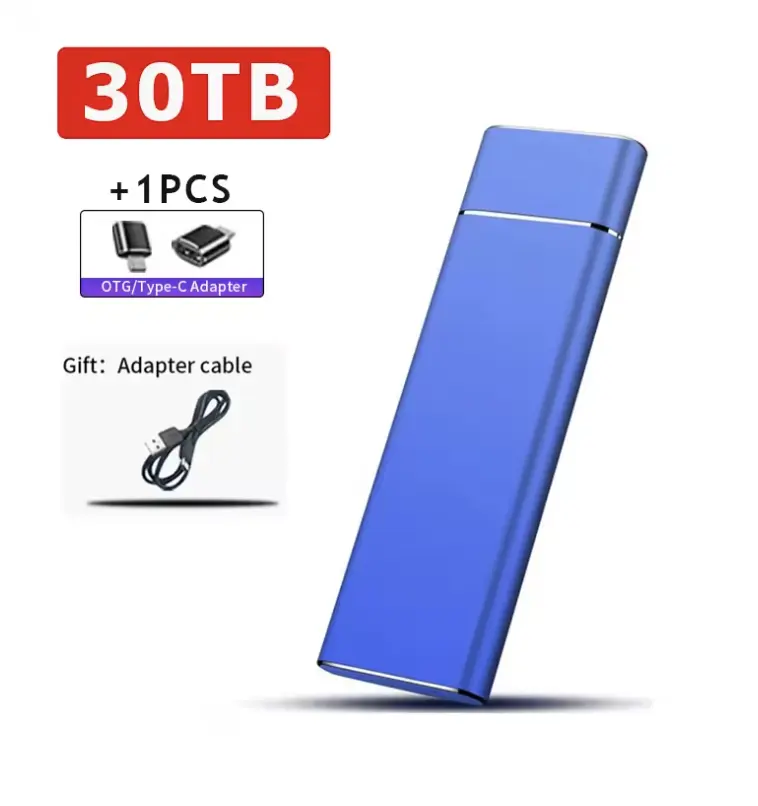
External 2TB / 20TB / 30TB High-Speed SSD
- Type-C / USB 3.1 interface
- Compatible with PC, laptop, and Mac
- Designed for fast transfers and portable storage
This option appeals to users looking for large-capacity external storage without internal upgrades.
Retro Gaming SSD for Consoles and PC
✔ Supports 80+ emulators
✔ Compatible with Switch, PS5, Xbox, PS4, PS3, PS2 & Wii U
✔ LaunchBox, RetroBat & Playnite ready
✔ Plug-and-play for PC & laptop
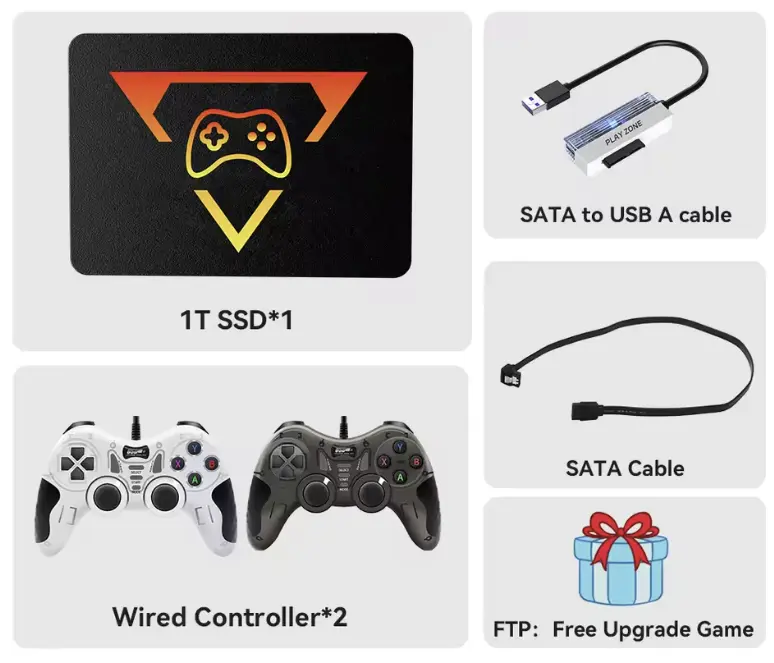
Retro Gaming SSD for Switch, PS5, Xbox, PS4, PS3, PS2, and Wii U
- Supports over 80 emulators
- Works with LaunchBox, RetroBat, and Playnite
- Includes more than 16,000 classic games
These plug-and-play SSDs are attracting retro gaming fans who want an all-in-one setup.
Why SSD Adoption Is Accelerating
From PCs and laptops to consoles like the PS5, SSDs are becoming essential rather than optional. As prices continue to fall and capacities rise, SSDs deliver faster performance, better reliability, and improved user experiences across devices.
For anyone still relying on older hard drives, the shift to SSD storage is one of the most noticeable upgrades available today.
Understanding what is SSD, choosing the right capacity, and knowing how to format, maintain, or upgrade your drive helps future-proof your devices. Whether you’re expanding PS5 storage, upgrading a laptop, or building a gaming setup, SSDs remain the fastest path to better performance.