Introduction: Why Pop-Up Blockers Exist—And When to Disable Them
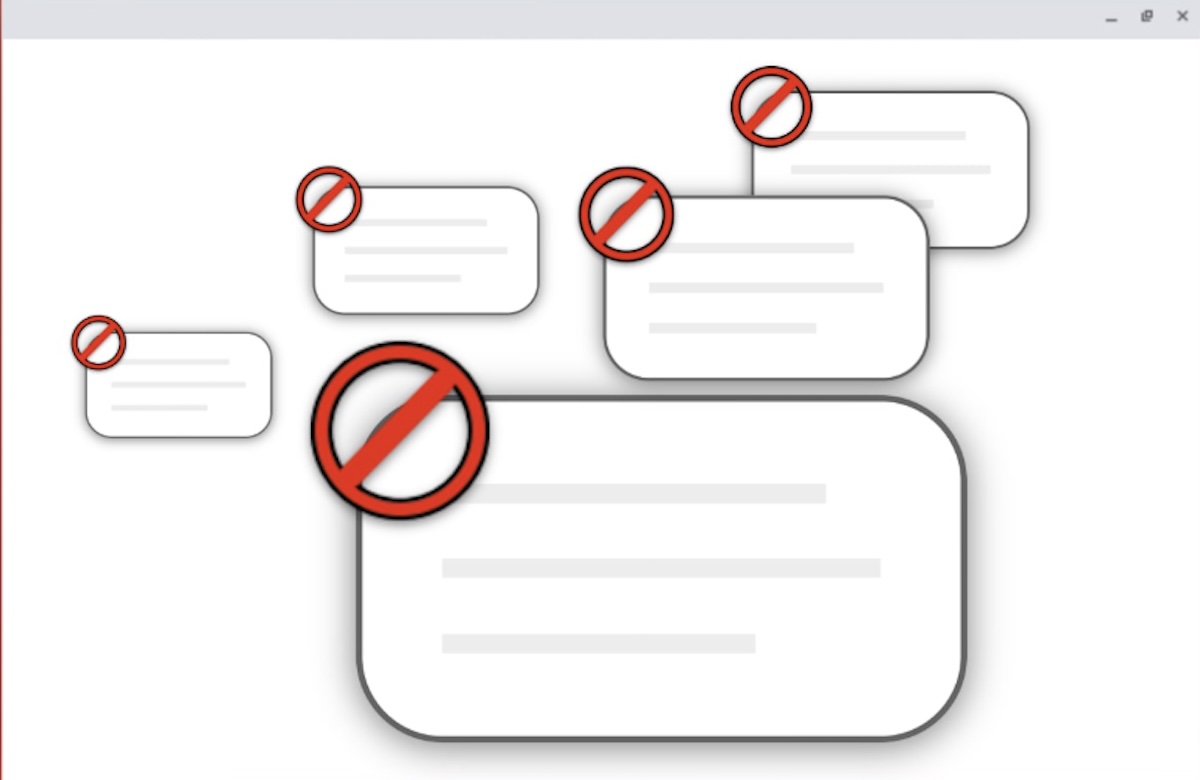
Pop-ups can be annoying—nobody wants their screen flooded with ads or fake virus warnings. That’s why browsers like Chrome, Firefox, Safari, and Edge come with built-in pop-up blockers to keep your browsing experience clean.
But sometimes, legitimate websites (like banking portals, webinar sign-ups, or download pages) need pop-ups to function. If you’ve ever seen a message like “Pop-up blocked. Click here to allow pop-ups,” you know how frustrating this can be.
In this guide, we’ll show you how to disable pop-up blockers in all major browsers—and how to do it safely without exposing yourself to malicious ads.
How to Disable Pop-Up Blocker in Google Chrome
Step 1: Open Chrome Settings
- Click the three-dot menu (⋮) in the top-right corner.
- Select “Settings” → “Privacy and security” → “Site Settings.”
Step 2: Allow Pop-Ups
- Scroll down and click “Pop-ups and redirects.”
- Toggle the switch to “Allowed” (or add specific sites under “Allow”).
✅ Done! Chrome will now allow pop-ups on all (or selected) websites.
How to Disable Pop-Up Blocker in Safari (Mac & iPhone)
On Mac:
- Open Safari → Click “Safari” in the menu bar → “Settings.”
- Go to the “Websites” tab → “Pop-up Windows.”
- Choose “Allow” next to “When visiting other websites.”
On iPhone/iPad:
- Open Settings → Scroll down and tap “Safari.”
- Toggle off “Block Pop-ups.”
✅ Done! Safari will now allow pop-ups.
How to Disable Pop-Up Blocker in Mozilla Firefox
Step 1: Open Firefox Settings
- Click the three-line menu (☰) → “Settings.”
- Go to “Privacy & Security.”
Step 2: Allow Pop-Ups
- Under “Permissions,” uncheck “Block pop-up windows.”
(Or click “Exceptions” to allow pop-ups only on certain sites.)
✅ Done! Firefox will now permit pop-ups.
How to Disable Pop-Up Blocker in Microsoft Edge
Step 1: Open Edge Settings
- Click the three-dot menu (…) → “Settings.”
- Go to “Cookies and site permissions” → “Pop-ups and redirects.”
Step 2: Allow Pop-Ups
- Toggle the switch to “Allowed.”
*(Or add specific sites under *“Allow.”)
✅ Done! Edge will now allow pop-ups.
How to Temporarily Allow Pop-Ups on a Specific Site
Instead of disabling pop-up blockers entirely, you can whitelist trusted sites:
- Chrome/Edge: Click the pop-up blocked icon (🛑) in the address bar → “Always allow pop-ups on this site.”
- Firefox: Click the shield icon → “Disable blocking for this site.”
- Safari: Right-click the address bar → “Settings for this Website” → “Allow Pop-ups.”
This keeps your browser secure while allowing pop-ups where needed.
Why You Should Be Cautious When Disabling Pop-Up Blockers
While some sites need pop-ups, many are used for:
- Scams & phishing (fake login pages)
- Malware downloads
- Aggressive ads
✅ Best practice: Only disable pop-ups for trusted sites (like banks or work portals) and re-enable blocking afterward.
Control Pop-Ups Without Compromising Security
Now you know how to disable pop-up blockers in any browser—whether you need to access a webinar, download a file, or use an online tool.
🔹 Prefer a safer approach? Whitelist only the sites you trust.
🔹 Dealing with too many ads? Try an ad blocker (like uBlock Origin) instead.
Take control of your browsing experience today—without letting annoying (or dangerous) pop-ups ruin it!
(This content updated in August 2025)
Found this guide helpful? Share it with someone who keeps seeing “Pop-up blocked” messages! 🚀